Squares
Squares are communities run by players. Each Square has a name, description and image, one owner, its members, a real-time chat and announcements from the owner. Anyone with a pilot name can create one for free.
Open Squares
- In the game, select Squares in the menu on the right. Squares open in a side panel, so you keep flying while you chat.
- In the Core Zone, use the Square portal. Once you have a Main Square, the portal shows its image.
- From the web, go to testnet.spacebar.xyz/hyperliquid/square. This opens the same panel in the game.
Find and join
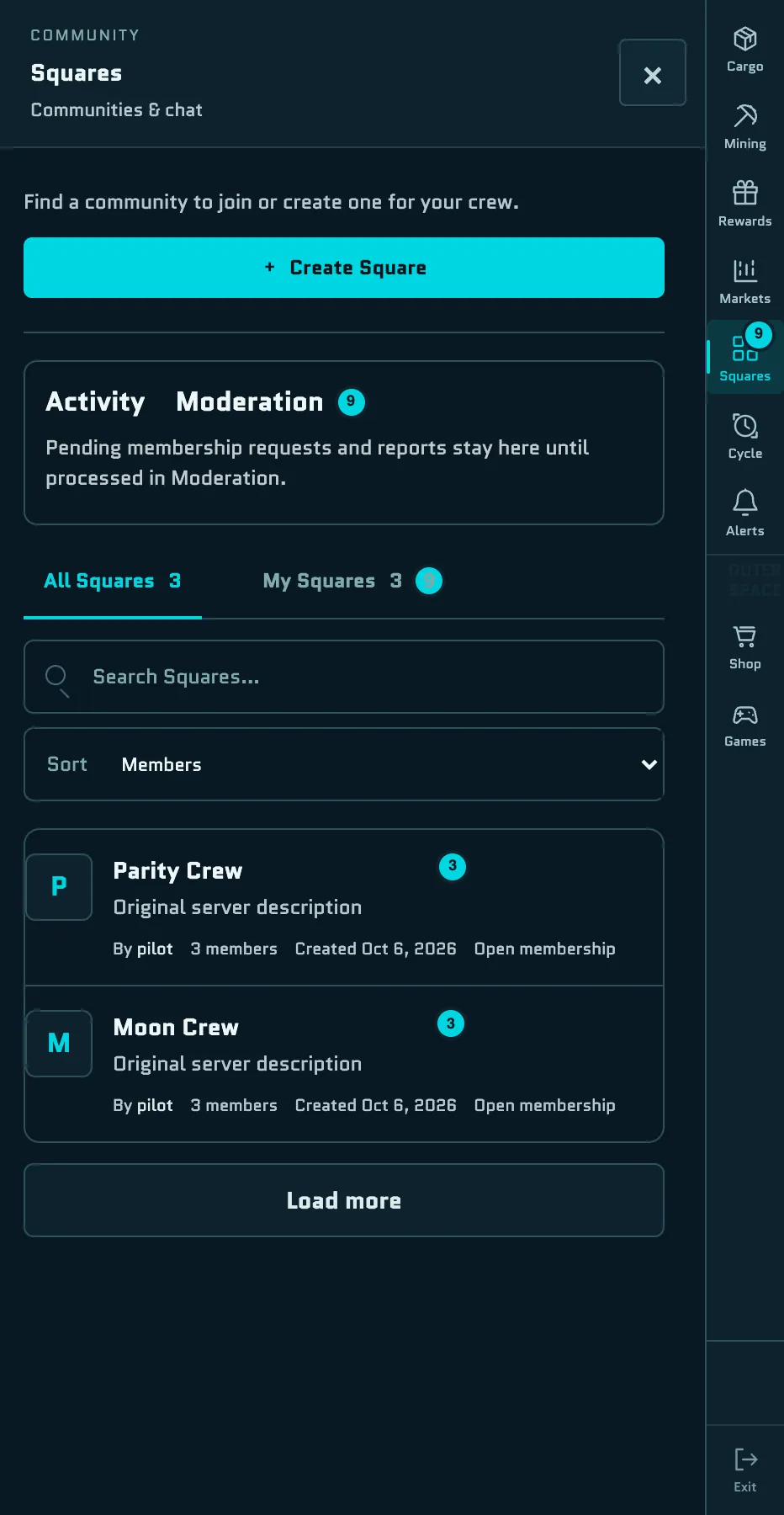
The panel has two tabs, All Squares and My Squares. Search by name, and sort by Members, Newest or Oldest. Each card shows the owner, the number of members, the creation date and how to join:
- Open membership: select Join Square on the Square's Overview, and you're in.
- Approval required: select Request to join. It shows Request pending until the owner accepts or rejects it. If you're accepted, it shows up in your Square activity.
You can join several Squares and pick one as your Main Square with Set as Main. Select Leave to leave a Square; owners can't leave their own.
Inside a Square
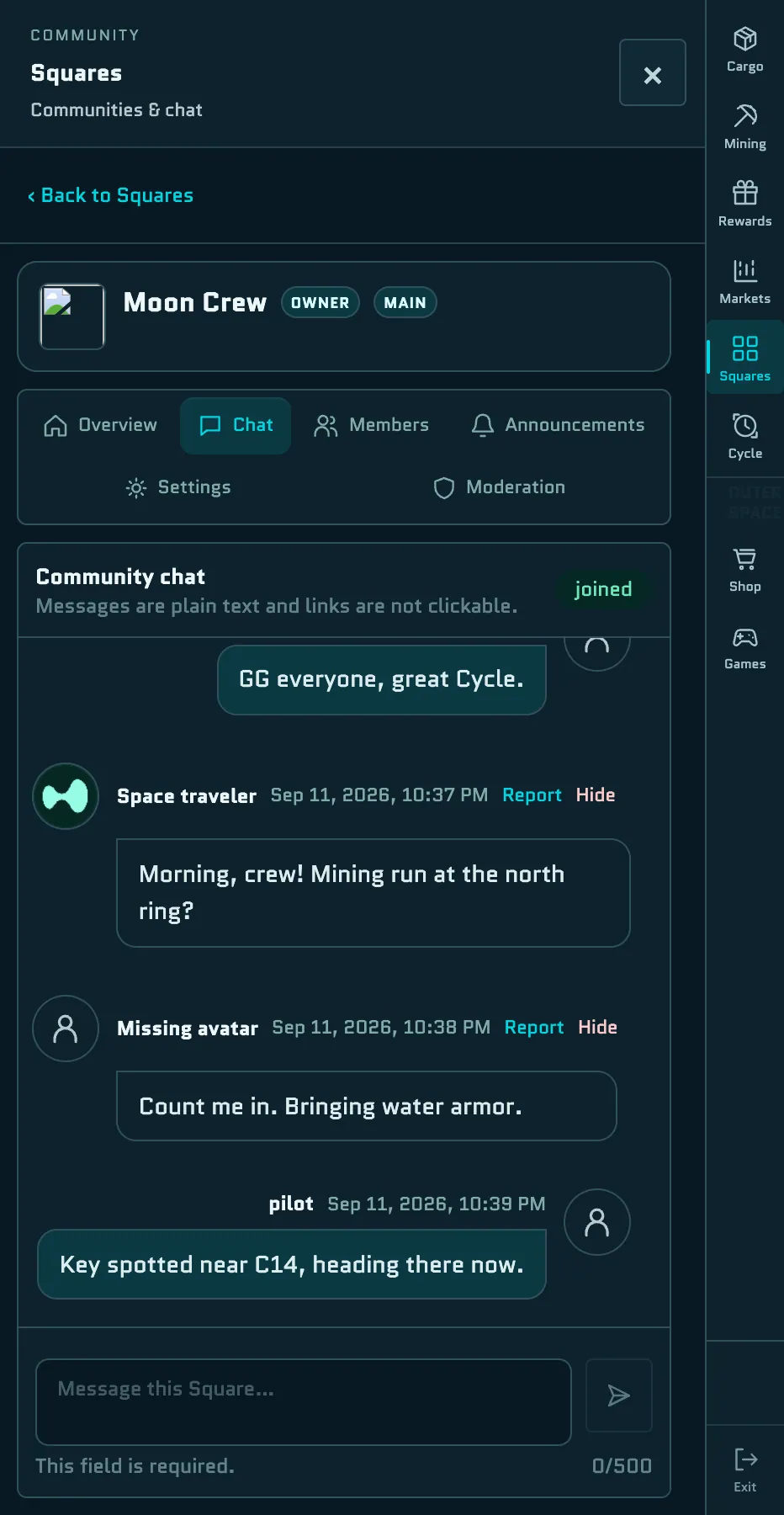
| Tab | What's there |
|---|---|
| Overview | The Square's details, its latest announcement and its activity |
| Chat | Real-time chat for members. Plain text, up to 500 characters per message and up to two messages per second; links aren't clickable. |
| Members | Active members, with search. Report a member here. |
| Announcements | Posts from the owner. Each new one shows up in members' Square activity. |
| Settings and Moderation | Owner tools (see below) |
Press Enter to send a message and Shift+Enter for a new line. To report a message or a member, select Report. A reason is optional for a message and required for a member.
Square activity
Activity at the top of the Squares panel, and on each Square's Overview, collects what needs your attention:
- New announcement in a Square you belong to, with Read announcement;
- Join request approved, with View Square.
Select Mark seen to clear an entry; this is remembered in your browser. Owners also see a Moderation count for join requests and reports waiting to be handled. Badges on the Squares menu, the My Squares tab, Square cards and a Square's tabs show where there's something new.
Create a Square
- Open Squares and select Create Square.
- Enter a name: up to 20 English letters, with at most one space. Names must be unique.
- Add a description of up to 255 characters, in plain text.
- Optionally, add a Square Image (JPEG or PNG, up to 10 MiB).
- Choose a Join Method: Open (anyone can join immediately) or Approval (you approve each request).
Creating a Square is free and needs no wallet transaction. You can own up to 10 Squares, and a new Square becomes your Main Square if you don't have one yet.
Owner tools
- Settings: change the name, description, join method and image. Switching from Approval to Open approves every pending request at once.
- Announcements: post, edit or delete announcements of up to 5,000 characters.
- Moderation: on Join requests, accept or reject requests. On Report cases, hide a message, ban a member or ignore the report. Reporters' identities stay private.
- Chat: hide a message directly with Hide.
- Members: ban a member.
WARNING
Bans are permanent, and hidden messages can't be restored. Ownership can't be transferred, and a Square can't be deleted.
Square sites
The Square sites in the world aren't active. Every site is unclaimed, and site activation isn't available.