Getting Started
Outer Space is Spacebar's game world on Hyperliquid. It's live on testnet at testnet.spacebar.xyz. This guide takes you from the landing page to your first flight in a few minutes.
Outer Space is on testnet
Outer Space runs on Hyperliquid's testnet (HyperEVM testnet, chain ID 998). When you create an account, you agree to the Spacebar Testnet Terms and Conditions: testnet data may be reset without notice, smart contracts may change, and data isn't guaranteed to persist.
What you need
- A desktop browser. Outer Space is built for desktop browsers first. Tablets work with touch controls. Phones and iOS Safari aren't officially supported.
- An EVM wallet, such as a browser extension like MetaMask or Rabby. Spacebar signs you in with your wallet only; there's no email or social login.
- A little testnet HYPE, but only for onchain actions such as buying from the Shop or claiming rewards. Flying, exploring and fighting don't need any transactions. See Account & Wallet.
- Testnet USDC, only if you want to buy Game Tickets for Ranked runs in the games or trade in Markets. The two use different test USDC; see Get testnet USDC.
1. Open Outer Space
Go to testnet.spacebar.xyz and select OUTERSPACE TESTNET.
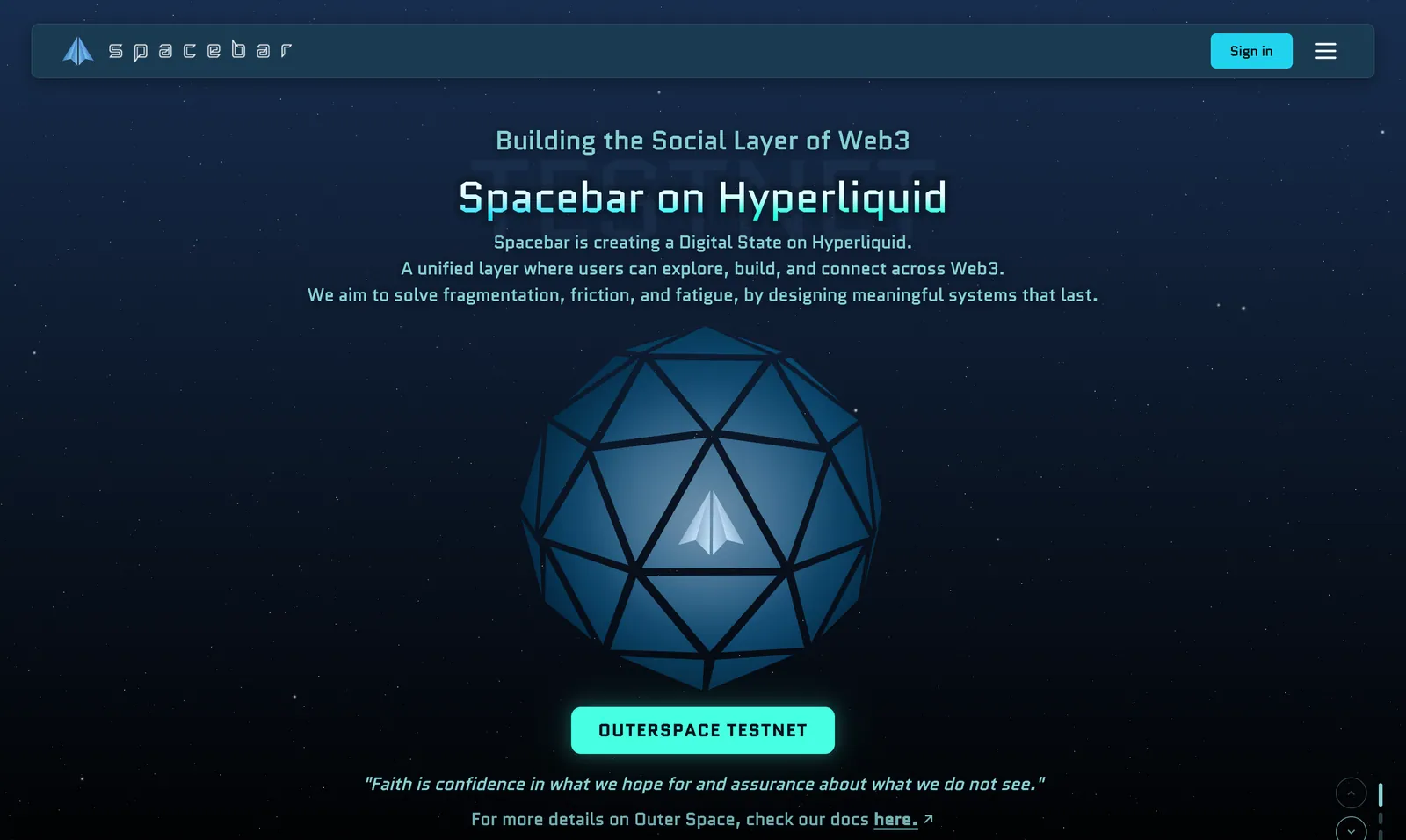
2. Connect your wallet
Choose your wallet in the sign-in window and approve the request in your wallet. If your wallet asks to switch networks, approve the switch to Hyperliquid EVM Testnet (chain ID 998).
Use the same wallet every time
Your pilot, items and rewards belong to the wallet you sign in with. Signing in with a different wallet starts a different pilot. If you switch accounts in your wallet app while you play, the game pauses until you switch back or sign in with the new account. See If your wallet account changes.
3. Create your pilot name
The first time you sign in, you'll see Create your pilot name. This name is shown to other pilots in Outer Space.
- Use 4–15 English letters or numbers, with no spaces or symbols.
- Names starting with "bot" are reserved.
- Names are unique, and you can't change your name later, so choose carefully.
Select I accept the Spacebar Testnet Terms and Conditions, read the terms and select I agree. Then select Enter Outer Space.
4. Take off
After a short loading screen, your ship appears in the Core Zone at the center of the map. You start with a basic kit of bullets, bombs, armor and a booster, already equipped.
The Flight Tutorial opens on your first flight. It introduces Outer Space and walks you through the cockpit. You can reopen it anytime from Settings → Controls → Show tutorial.
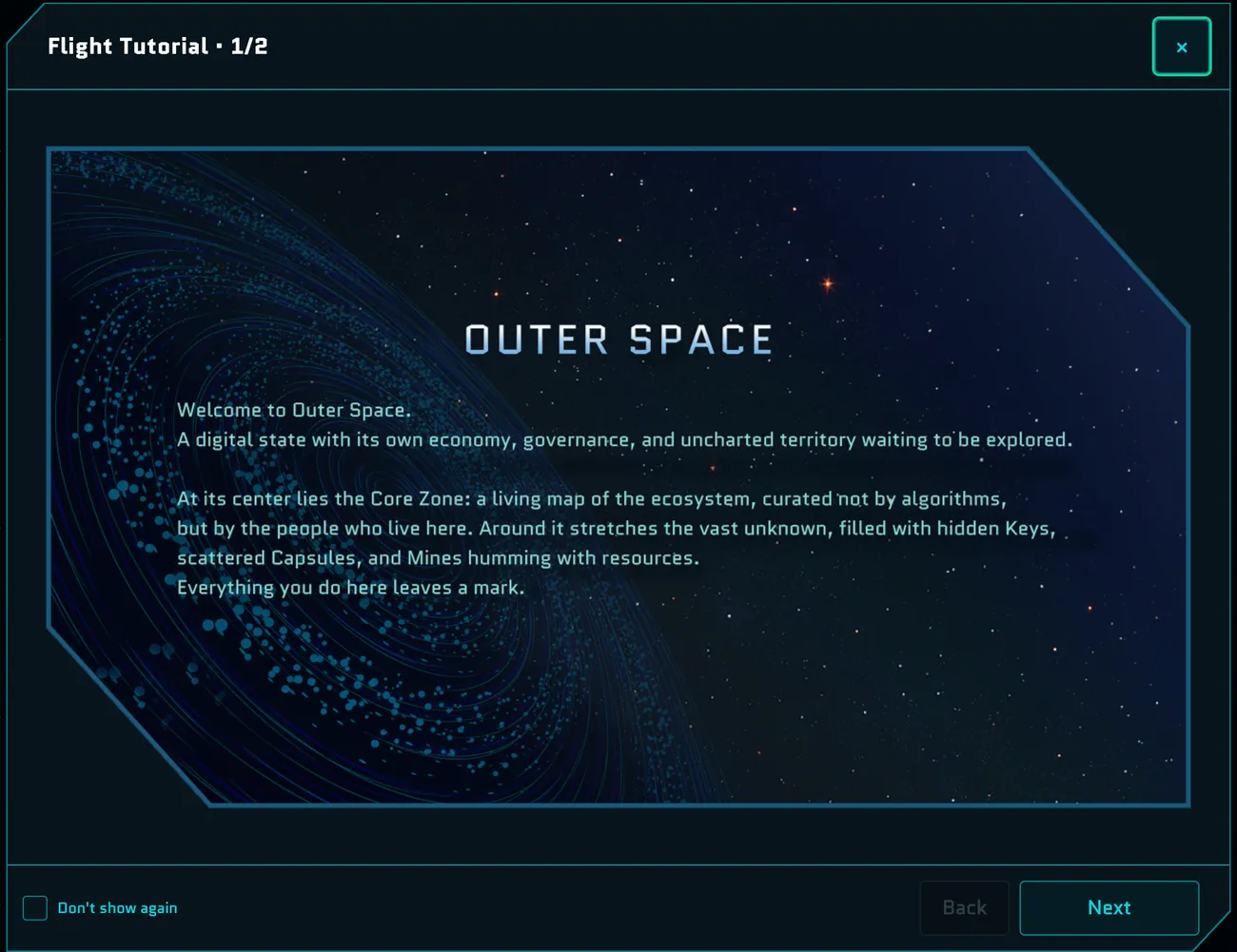
The basics, using the default keyboard layout:
| Key | Action |
|---|---|
| Arrow keys | Move |
| A | Fire |
| S | Boost |
| Space (hold) | Interact with what's near you: enter, open, claim |
| M | World map |
| Enter | Chat with other pilots |
See Playing Outer Space for all controls, menus and touch controls.
Next steps
- Playing Outer Space: controls, the HUD and menus, Cycles and what to do first
- Account & Wallet: your wallet, AIR, testnet HYPE and USDC, and transactions
- Rewards: how to earn rewards and claim them
- Mini-games: Poker, Gravity Duel, Star Sweepers, Hype Sweepers, Space Drift and Star Racers