Playing Outer Space
This guide covers how to fly, what's on your screen, how combat and travel work and what happens each Cycle. If you haven't signed in yet, start with Getting Started.
Controls
Choose your keyboard layout in Settings → Controls. Press ? in the bottom bar anytime to see the controls.
| Action | Layout A (default) | Layout B |
|---|---|---|
| Move | Arrow keys | W A S D |
| Fire | A | J |
| Boost | S | K |
These keys are the same in both layouts:
| Key | Action |
|---|---|
| Space (hold) | Interact: enter a portal or planet, open a Mine, claim a Key, use a wormhole |
| R | Aim a bomb, then click where to throw it. Press R or Esc, or right-click, to cancel. |
| L | Flight lock: keep flying in your current direction |
| Z | Change the camera zoom |
| M | World map |
| B | Cargo |
| Enter | Open chat |
| G | Quick Emotes: then press 1–5 to send one |
| Esc | Close or cancel |
Touch screens. The touch controller turns on automatically on touch devices. Drag on the left side to steer; hold FIRE to shoot and tap BOOST for a burst of speed. Drag from BOMB to aim and release to throw. Hold USE to interact; its label changes to show what it will do, such as Enter, Open or Claim. CRUISE keeps you flying without holding the stick. In Settings → Controls you can set the stick to follow your thumb or stay fixed, change its side, size and opacity, and Reset to default. The controller is always on for touch screens; on a computer without one, you can turn it on there too.
Your screen
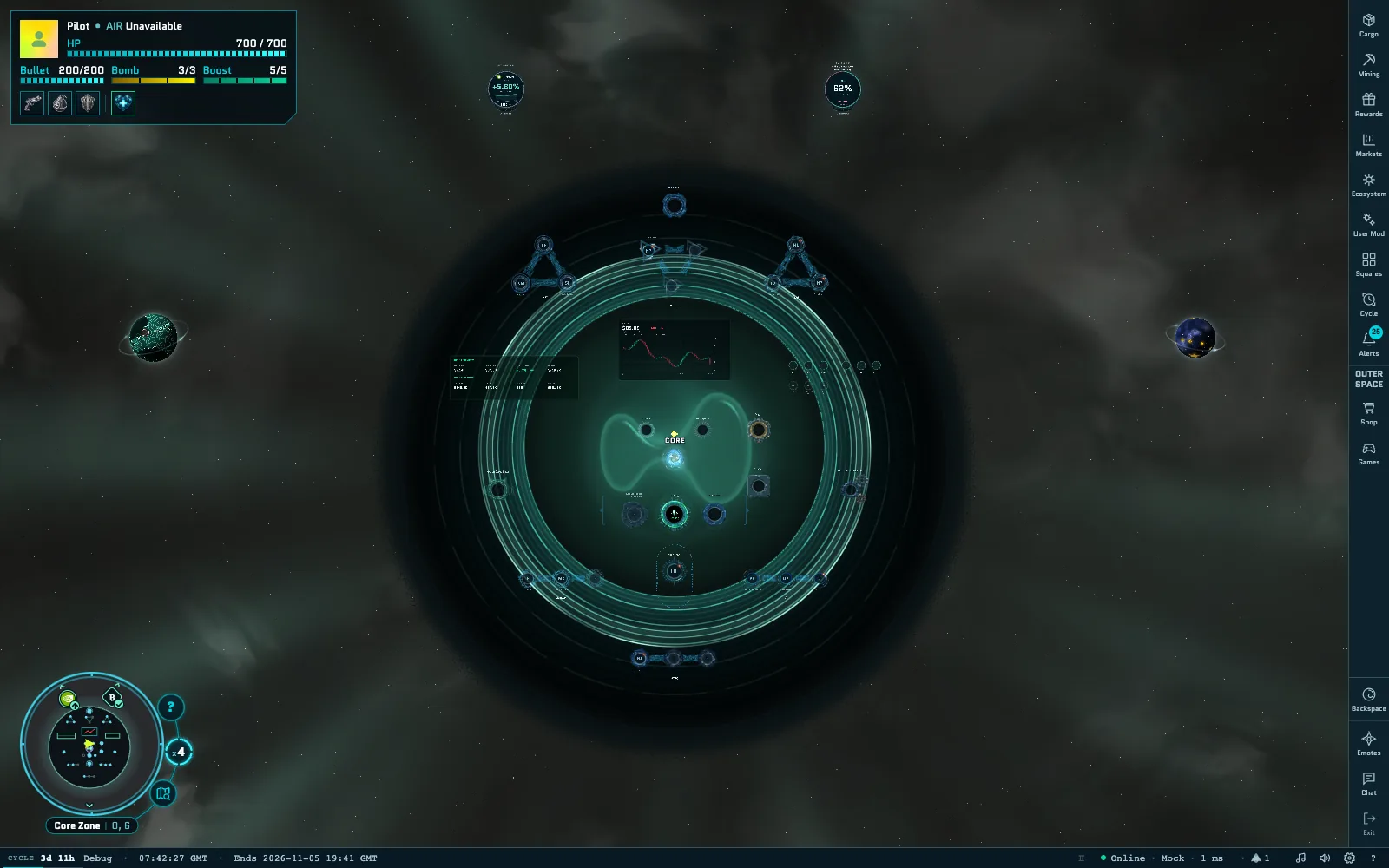
- Upper left, pilot status: your picture and name (select either to change your profile image), your AIR balance, and gauges for HP, bullets, bombs and boost. The icons below the gauges show your equipped gear and active effects.
- Right, game menus: the menu column described below.
- Top: your Markets favorites and, during a fight, your target's health bar.
- Above the bottom bar: the minimap with your zone and coordinates. Its buttons open the world map, change the zoom and show a legend of every mark.
- Bottom bar: the time left in the Cycle (select CYCLE to open the Cycle view), a ticker with the Cycle's name, the current time and when it ends, your connection (the server region, latency and players online), sound controls, Settings and ? for controls.
Game menus
Most menus open in a side panel. Select the same icon, × or Esc to close it. Cycle and User Mod take over the whole screen instead, with their own menu items.
These menus are always available:
| Menu | What it does |
|---|---|
| Wallet | Your sign-in wallet, balances, AIR activity and transactions. See Account & Wallet. |
| Cargo | Your equipment, supplies and tickets. See Shop and Cargo. |
| Mining | The status of your Extractor. See Mining. |
| Rewards | Claim your rewards and see your history. See Rewards. |
| Markets | Live Hyperliquid market data for Spot, Perps (with HIP-3) and HIP-4, and trading on Hyperliquid testnet. See Markets. |
| Ecosystem | Hyperliquid projects, with comments and safety reports. See Ecosystem. |
| User Mod | Vote on the next Cycle's version of the map, or make your own. See User Mod. |
| Squares | Communities and chat. See Squares. |
| Cycle | This Cycle's Keys, mining, Capsules and rewards. See World & Cycles. |
| Alerts | Account notifications. See Community. |
Badges on the menu show what needs you: Extractors ready to collect, rewards ready to claim, unread chat messages and more. On a short screen, the menu shows icons only and scrolls.
Other menu items change with where you are:
| Where you are | Menus |
|---|---|
| Flying in Outer Space | Shop, Games, Emotes, Chat, Backspace |
| Your Backspace room | Shop, Journey, Return |
| The Square space | Return |
| World map | Wormholes, Journey, Return |
| Cycle view | Shop, Journey, Return |
| User Mod | Candidates, My Mods, Return |
Journey shows this Cycle's distance, flight time and map vision. Exit, at the end of the menu, takes you back to the main screen.
The map
Outer Space is a diamond-shaped map made of triangular Zones, with the Core Zone at the center. The map's size is set at the start of each Cycle: it grows by a ring when pilots explore widely and find Keys quickly, and it can shrink by a ring when they don't.
Press M for the world map. It shows each Zone's trait, the areas you've explored, game planets, wormhole points, Keys found this Cycle, Mines you've discovered and your route.
- Zoom with + and −, and pan with the arrow keys or W A S D.
- Press C to center on your ship and 0 to see the whole map.
- Select a game planet and choose Travel to Planet ↗ to fly there on autopilot. A card shows the distance left; select Cancel or press Esc, or use the movement controls, to take over at any time.
What to do
- Find Keys. Twelve Keys are hidden on the map each Cycle, and you can claim one per Cycle.
- Mine AIR. Install your Extractor at one of the eight Mines around the center and come back to collect.
- Break Capsules. Shoot Capsules in the outer Zones for ammo and booster refills.
- Fight enemies. Enemies can drop AIR coins and supplies.
- Play games. Visit the game planets and play Ranked runs for rewards.
- Explore the ecosystem. The Core Zone has portals to Hyperliquid projects, market data and staking, and you can trade on Hyperliquid testnet from the Markets menu.
- Talk to pilots. Say hello in chat or send an emote.
Combat
Enemies live in the outer Zones, never in the Core Zone. They come after you when you fly close, and they can chase you across Zone borders before they give up and return to their site.
- Voidlings fly in swarms of six and attack up close.
- Leviathans are lone heavyweights that shoot from range.
When you destroy enemies, they sometimes drop AIR coins, ammo or booster charges. Fly over a drop to pick it up before another pilot does; drops disappear after 5 minutes. AIR coins go to your Rewards.
Weapons. Your Laser Gun fires bolts that use bullets. Bombs deal heavy damage in an area; press R, then click a point within range to throw one. You can carry up to 3 bombs. Boosting speeds you up for 5 seconds, by 1.2× with a Common Booster or 1.4× with an Uncommon one, and uses one booster charge.
Traits. Zones, enemies and gear can have a trait: Fire, Water or Plant.
- Water beats Fire, Fire beats Plant and Plant beats Water. Hits from the winning trait deal double damage, and hits from the losing trait deal half.
- In a Zone with a trait, wear armor of the same trait to be shielded. Otherwise your ship is exposed and slowly loses HP.
- Each Zone's trait is set at the start of every Cycle. Hover over the Zone icon below your gauges to see your current status.
The Core Zone is safe. There's no Zone damage there, and your ship repairs itself while you're inside.
If your ship goes down, you respawn at the Core. Your gear, Cargo and AIR are safe.
See Combat & Gear for gear stats and enemy drops.
Shop and Cargo
The Shop. Open Shop while flying, in your Backspace room or in the Cycle view. It has two tabs:
| Tab | Items |
|---|---|
| Equipment | Laser Guns, Bombs and Armor in Common and Uncommon tiers, with a Fire, Water or Plant trait (Uncommon ones also with no trait), and the Uncommon Booster. The no-trait Common gear is your free starter kit, so it isn't sold. |
| Consumables | Heals (Heal 100, Heal 200, Full Restore), Refills (Bullet Ammo, Bomb Ammo, Booster Charge) and Tickets (Wormhole Ticket, Game Ticket) |
Prices are in AIR and paid from your wallet, except Game Tickets, which cost 0.50 USDC each. Your wallet asks you to approve the payment and confirm it. Items arrive after the transaction confirms. You can buy a limited number of each supply per Cycle and one of each piece of equipment. See Shop & Wormholes for prices and Approving a transaction.
Purchases last for the current Cycle
Your equipment and supplies reset when a new Cycle begins, including anything you bought. Game Tickets don't reset. The Shop doesn't take AIR purchases in the last minute of a Cycle.
Cargo. Press B or open Cargo to manage your items:
- Equipment: equip one Primary weapon (Laser Gun), Secondary (Bomb), Armor and Booster. Each item shows its stats compared with what you have equipped; select Equip to use it.
- Refill: use refills to top up your bullets, bombs and booster charges.
- Heal: use heals to restore HP.
- Tickets: your Wormhole Tickets, with wormhole travel, and your Game Ticket balance.
Wormholes
Wormholes let you jump between fixed wormhole points on the map, such as Core or East Gate B.
- Fly to a wormhole point and hold Space for 1.5 seconds to deploy your own wormhole. Deploying is free, and you can have one at each point.
- Deploy at least two wormholes. Only you can use the wormholes you deploy.
- On one of your wormholes, hold Space to open the wormhole network. Choose a destination and select GO. You can also travel from Cargo → Tickets when you're within 100 units of one of your wormholes.
Each trip uses 1 Wormhole Ticket, which you can buy in the Shop. Your wormholes stay put if your ship goes down, but they're cleared at the end of each Cycle. See Wormholes.
Cycles and Seasons
Outer Space runs in Cycles. Each Cycle lasts seven days, and twelve Cycles make a Season. The bottom bar counts down to the end of the current Cycle. It turns amber in the last 24 hours and red in the last hour.
Each new Cycle:
- brings 12 new Keys; Keys not found in the last Cycle disappear;
- sets new Zone traits and enemy sites, and the map can grow or shrink;
- refills every Mine's shared reserve;
- resets your Cargo, equipment, supplies, wormholes and Journey stats. You start again with a free starter kit: a Common Laser Gun, Bomb, Armor and Booster, already equipped, with full bullets, bombs and booster charges.
If you're flying when the Cycle changes, your reset happens right away. If the next Cycle isn't ready yet, the bottom bar shows Updating… until it starts.
Your Game Tickets carry over. Your unclaimed rewards don't reset either, but each one expires 72 hours after you earn it, and a Key reward has to be claimed before its Cycle ends. See Rewards.
The Cycle view shows the state of the current Cycle: how many of the 12 Keys have been discovered and minted, the AIR reward per Key, mining and Capsule activity, and how much of the Cycle has passed. See World & Cycles.
Settings and connection
Open Settings with the gear in the bottom bar. It has five tabs:
- Audio: sound effects and music volume.
- Graphics: visual quality, FPS limit and the activity feed.
- Controls: keyboard layout, the touch controller and Show tutorial.
- Connection: your connection's status, latency, players online and frame rate, and your preferred region.
- Bot: connecting a bot as your pilot is marked Coming soon.
If the game lags or disconnects:
- Check the connection chip in the bottom bar. It shows the server region you're connected to (NRT for Tokyo, SIN for Singapore or SJC for San Jose), your latency and the players online. Select it to open Settings → Connection.
- Choose a Preferred region close to you: Auto, Tokyo, Singapore or San Jose. Then select Reconnect to use it. Your choice is saved in this browser.
- Lower the Visual quality or FPS limit in Settings → Graphics if your device struggles.
If your ship won't move and you see Movement input blocked, a menu still has keyboard focus. Let go of the movement key, click the game area and try again.